• Recent Posts

  • Tags (Categories)

  • Archives

  • Pages

  • February 2026
    M T W T F S S
     1
    2345678
    9101112131415
    16171819202122
    232425262728  

Cill Creel at ITC09

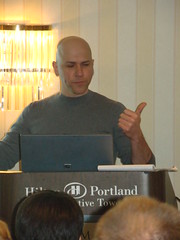
Gill Creel presented a great session at ITC09 titled: Cool Idea, But How Did It Really Work?

Description: In Fall 2008 two instructors revamped their online American literature course from print, static Web pages, and a limited learning management system to Web 2.0. They threw out the textbook and went to the Web to provide all of the content and interaction. They tried to strong arm the LMS into acting like a Web 2.0 application. The presenters will discuss integrating Web 2.0 tools – such as Google gadgets, Google Calendar, Blogger, Trailfire, Pbwiki, Survey Monkey, Zoho Creator, WebEX, Adobe Captivate, and Diigo – into an online course from a pedagogical and technical perspective. They will show some “how-to” and explain “how-they-do” by offering a faculty level report on their successes and failures. What did they learn? Did the technology help or hinder? What didn’t work due to the technology, due to the personnel? What will they keep? What will they jettison?
Here’s the tools he talked about.

Tools I Use

Audacity
Blogger
Desire2Learn
Diigo
Flickr Creative Commons
Google Calendar
PBWiki
SimpleRSS Google Gadget
SurveyMonkey *
Trailfire
Vimeo *
WebEx
Zoho Creator

(Sorry Gill, but that’s the best pic that I got. Ouch)

ITC09 – Portland – Bryan Alexander Keynote

Bryan Alexander was the keynote speaker for the Sunday morning “sermon” at ITC09, the eLearning 2009 conference in Portland, OR. Heads were exploding throughout the nearly 90 minute session. Really great stuff. I shot some video snippets and will try to get it posted soon. Lots of talk about Web 2.0, Web 3.0, and gaming (and about 20 other topics). Hope to post more later.

Twitter Friends

This is a mosaic of the people I follow on Twitter. This group has quickly become the most important source of my day-to-day learning about technology uses in education. Thanks a hat tip to Britt for pointing me to the Twitter mosaic maker.

Bay College – Teaching with Technology

I spent a day at Bay College in Escanaba, Michigan in early January for their spring semester opening day. The second of three presentations was titled “Teaching with Technology – Myths & Realities.” This is a clicker presentation where the audience shares their opinions about whether some of the common statements about teaching with technology have any resemblance to the truth of the matter. For example, lots of people say that PowerPoint is Evil – but do they really believe that or is it just a catchy saying? What about “schools suck the creativity out of our children.” Is that mostly true or mostly false? The embedded slide show indicates how the audience of about 45 people voted on each of the potential myths. Only about half of the potential myths were covered during this presentation,so I still have a pretty good supply of material for the next time I give this presentation.

Northwestern Michigan College – Learning 2.0

I had a great day at Northwestern Michigan College on Tuesday, January 6 for their spring semester opening day. They have a great professional development project this semester called Learning 2.0 where they (at least 40 people so far) will learn together about many of the Web 2.0 tools that can be used effectively in higher education.

Update: 95 people in Learning 2.0 as of 1/12/09. Cool!!

About 130 people were in the audience using clickers. I gathered info about their uses of Web 2.0 tools and other things related to using technology. Here are a few of the results (much more in the slides embedded above.)

  • 65% file their income taxes online, but only 1% use Dogster.
  • 32% have taught an online class, but 53% have taken an online class.
  • There is an overall disagreement about whether the Digital Net-Gennials have the characteristics that the “experts” say they have (slide 42). (Yes, those quotes are intentional.)
  • 95% of the audience had a cell phone, with almost 2/3 of them using text messaging on their cell. 7% own an iPhone.

I’m going to analyze the info in a bit more detail and make another post later on. I’ll also be posting info soon about my visit to Bay College in Escanaba, MI.

Top Web Tools of 2008 – Number 1

toondoo-logoToondoo always gets a rave whenever I demonstrate it at workshops and conferences. According to the company, “ToonDoo was the happy result of brainstorming session that was aimed at creating a new way of expression for those who do not have the talent to draw. You can now just drag-drop or click to create comic strips that express your views, opinions, angst or to just have fun, loads of it!”

There seems to be a bit of momentum in the use of comic strips as an outlet for student creativity. I encourage faculty to at least once a semester give their students the option of creating a comic strip or comic book as a means of expressing themselves rather than the same old tired term paper or other same-old, same-old project.

The ToonDoo site is a bit of a social network; sort of a YouTube for comic strips. You can comment on the comic creations of other people and also rate them. You can save your own comics and those of others that you have marked as as favorites and collect them into galleries. From the home page you’ll find links to the Most Viewed, Editor’s Picks, Latest Doos, etc. If a creator is so inclined, they can make their comics “Re-doo-able,” which means that others can remix or improve upon them. This is another example of where students can publish their creative works publically and receive feedback and evaluation of their work.

Here’s an example of a simple 3-panel Toondoo that I created. (link to strip at Toondoo site)

\Toon\

In addition to the single strip as shown above, you can also create a book of comics, called a ToonBook. Due to restrictions in this WordPress-powered blog, I can’t embed a ToonBook to show you the full array of features. I’ll try to embed one below, but you’ll probably have to click this link to open the ToonBook in a new window at the Toondoo site.

barrydahl LSC toondoo for students in the non-degree-seeking status for enrollment.

This ToonBook is a prototype for a project I hope to complete at LSC this year. I want to have various employees and student workers help create ToonBooks and Toondoos for us to use in place of some of our standard FAQs on the website. I’m hoping that they will be entertaining as well as informative (and better than the quickly thrown-together prototype shown above).

Toondoo provides a selection of characters, backgrounds, props, clip art, and text boxes to choose from; or you can upload your own pictures into a personal image gallery and use them. It is very easy to resize, rotate, flip, or position the objects in the comic strip panel wherever you like. When satisfied with your creation, you can publish (either publis to the world or private to invited guests) with a single click of the mouse. You still have the option of re-opening the comic strip and editing further even after it has been published.
Students I have worked with find these projects to be both enjoyable and engaging. It is one of the easiest ways of having students engage in digital storytelling. It also can be a great way of having them introduce themselves at the beginning of an online class, or for an online instructor to provide some of the basic information about the class. The only real limit appears to be your own imagination.
One final note. I have found the Toondoo staff to be surprisingly communcative and engaged. They care about their service and are always striving to make it better.
That’s all for 2008. Happy New Year to all, and to all warm wishes for a great 2009.

Top Web Tools of 2008 – Number 2

zoho-notebook-logoZoho Notebook helps you organize information into multiple-page web-based spiral notebooks. You can easily combine text, graphics, audio, video, and embedded content from other sites.I have long been a Zoho fanboy, but I continue to be amazed at how forward-looking Zoho Notebook is, and how the drag-and-drop interface let’s you customize the arrangements of objects on a webpage in ways that just can’t be done with Dreamweaver and other html page editors (at least, not in any way that I know of).

As a Web 2.0 tool, you can easily collaborate with others by sharing an entire notebook, individual pages of one or more notebooks, or specific objects (such as images) within a particular notebook page. That granularity in assigning rights is pretty uncommon. As you would expect, you can assign either editing or read-only privileges to your collaborators. There’s even a built-in chat window for exchanging instant messages with distant collaborators.

There is a Firefox plug-in for Zoho Notebook that allows you to take screenshots of web pages. After installing the plug-in, you can right click on any web page to capture the entire page or just a user-defined selection of the page. These screenshots will be inserted into your open Zoho Notebook (must be logged in to Notebook) where you can then re-size, edit, or change the positioning of the object.

Zoho Notebook treats everything in your notebook pages as an object that you can move around anywhere you choose, even creating layers of objects if you so desire. Objects can be pinned in place so that you don’t accidentally move them, or you can leave them ready to be dragged and dropped to a new location with a flick of the wrist (mouse).

When you open a new notebook you start with a blank page. You have complete control over what types of content you add and where you add it. Additional blank pages can be added from the control panel, or instead of a blank page, you can begin with a word processing document, a spreadsheet, or a web page that you want to share. The first two options make use of the Zoho Writer and Zoho Sheet applications  which are integrated into the Notebook interface. You have all of the editing tools from both applications, available right inside your collaborative notebook. If you use other Zoho services (which I do), you can easily incorporate other things such as presentation slides from Zoho show, and even web forms made with Zoho Creator.

There are also some basic whiteboarding capabilities built into Zoho Notebook. I wouldn’t consider it to be a replacement for a full-featured whiteboard, but you can mark up documents and such using these drawing tools.

To recap, the following types of content can be used:

  • Text Boxes, of any size and placement
  • Images, via upload or URL
  • Audio, upload from computer, point to URL,  or record with microphone
  • Video, upload from computer, embed from YouTube or similar, or record with webcam
  • HTML, which allows you to include any content that you can normally embed into a Web page
  • A website via its URL, which can embedded onto the page using an iFrame-ish picture-in-picture, or use the entire webpage as a separate page of the notebook
  • RSS feed, which will display in an RSS reader widget
  • A file attachment via URL or upload
  • An embedded document from Zoho Sheet or Zoho Writer which can either be a separate window in a page with other content or the whole page to itself

Zoho Notebook also includes wiki-like history of versions and version comparisons. A new version of the notebook is recorded in history every time that you save a page. You have the option of reverting to an earlier saved version at any time, which allows you to easily correct errors, or simply review the progress that has been made on a collaborative project by the different authors. Even better, each object in the notebook has its own version history so that you can revert changes to that object without changing everything else in the notebook. That’s pretty damn cool.

Top Web Tools of 2008 – Number 3

netvibes-logoNetvibes is an extremely useful and customizable personalized start page, similar to (but better than) iGoogle, Pageflakes, and the like. “Better” of course is in the eye of the beholder, and I’ll start by telling you the one feature that I think makes Netvibes better – you get a public page that you can share with the world. I have used iGoogle since it was first released and I do like many things about it. However, the lack of a public page for sharing your stuff with others is a major deal-breaker for iGoogle. Here is one of my public Netvibes sites.

Any Netvibes site can be personalized through the use of existing themes or by creating your own theme. You decide how many customized tabs to use, which feeds to display, and which modules should be shown. Display your email, weather, latest news from your favorite news sites, the latest posts from your favorite blogs, your Twitter feed, Delicious bookmarks, Flickr photos, Skype windows, instant messaging, a comment wall, and much,much more.

The Netvibes Ecosystem is where some of the useful new developments occur. There’s a Facebook Application, a Firefox extension, nearly 150,000 widgets (as of Dec. ’08), and a large number of third-party tools.

One of the best educational uses of Netvibes comes from none other than Professor of the Year Michael Wesch of Kansas State University and his Digital Ethnography project.

Other useful links:

Finally, I’ll leave you with a video I created for a blog post titled “Web 2.0 inside D2L – Netvibes as Home Page.

Top Web Tools of 2008 – Number 4

diigo_logoDiigo is more than just another social bookmarking tool. During this past year, they unleashed their Diigo Educator Accounts in an effort to make Diigo a “more integral part of collaborative learning in the school environment.”

From their blog: “Specifically, once approved for a Diigo Educator Account

  • A teacher can create student accounts for an entire class with just a few clicks (and student email addresses are optional for account creation)
  • Students of the same class are automatically set up as a Diigo group so they can start using all the benefits that a Diigo group provides, such as group bookmarks and annotations, and group forums.
  • To protect the privacy of students, student accounts have special settings which only allow their teachers and classmates to contact them and access their personal profile information.
  • Ads presented to student account users are limited to education-related sponsors.

If you are an educator, you can go ahead and apply for a free Diigo Educator account now! You can also check out FAQ and Getting Started tutorial for Diigo Educator Accounts.” (end of paste from blog)

A very useful tool is Diigo WebSlides which is an easy way to convert your Web bookmarks into slideshows. You can check out WebSlides at slides.diigo.com. You literally get a slideshow made up of active web pages from the sites you have bookmarked. You can create a special subset of your bookmarks to include only those desired into the Webslides show. The slide shows also display any text that you’ve highlighted usinf Diigo or notes you’ve taken on bookmarked sites. Here’s a WebSlides show I created with the top 50 tools from my PLE. Each webslide displays for 10 seconds before going to the next,

Other useful links:

diigo education pioneer

Top Web Tools of 2008 – Number 5

google_reader_logoGoogle Reader has moved into my top 10 this year even thought I have already added long-time RSS reader Bloglines to my Hall of Fame. I won’t be at all surprised to end up with two or more RSS readers in the Hall before too much longer. One reason that I really like Google Reader is because they have a public page that allows you to share saved posts with others.

I find the shared items page to be especially useful when sharing content with students, even inside the VLE (virtual learning environment, such as D2L, Angel, Moodle, or any other you might think of). Here’s a video of how that works (embedded below, or open in new page with link.).

Here’s a few other links.